GuidesHow-to
Import your card collection from a CSV or TXT file
Your card collection is already written down somewhere. Bring it in without typing it all again, and check every match before anything is saved.
5 min read
Start with the list you already have
There's a spreadsheet you've kept up for years. Or a file you exported from another app and never opened again. Either way, the list exists.
That was the hard part. You've already done it.
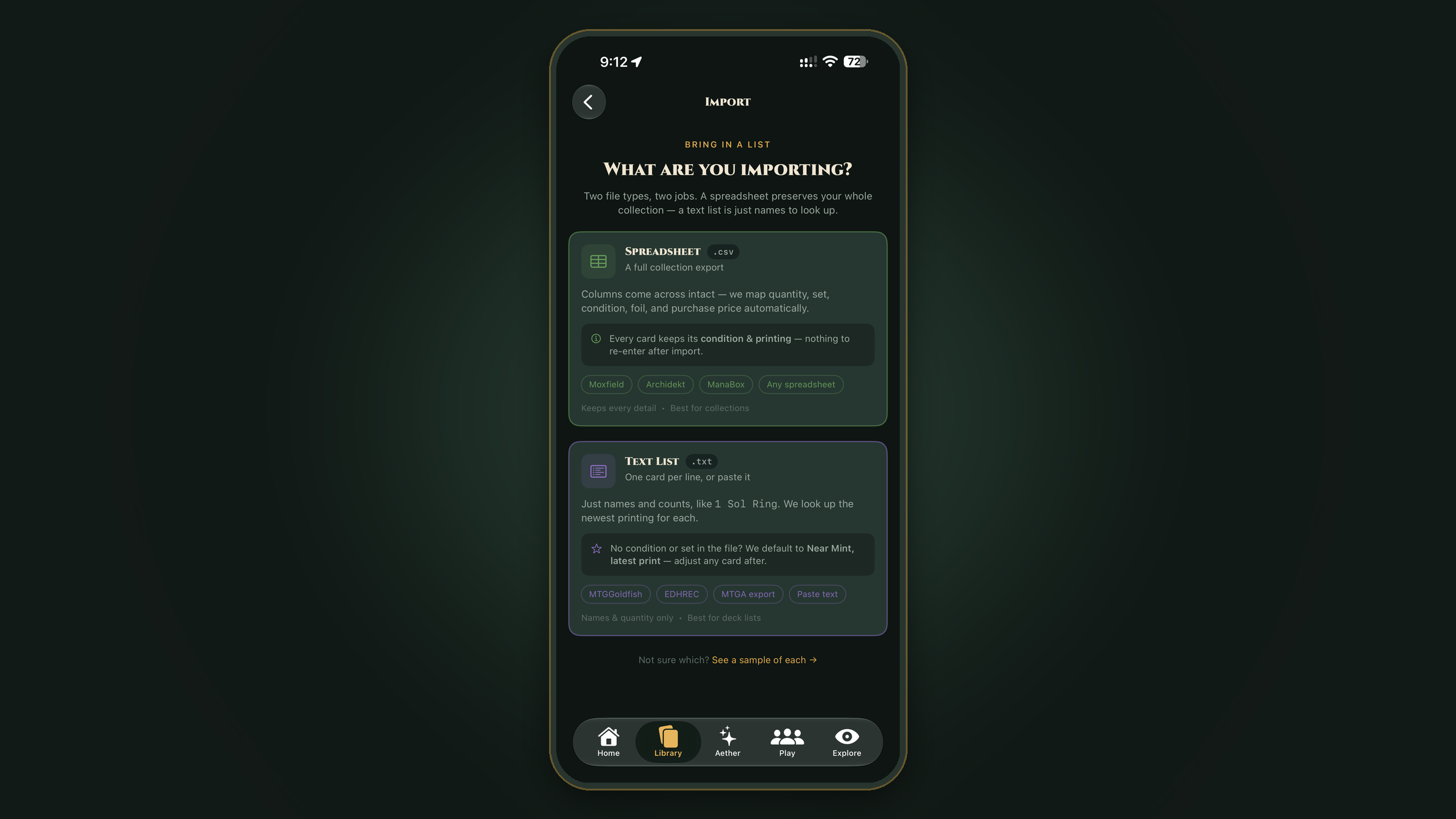
Your Vault is the part of your Library that keeps every card you own, and only you can see it. Import fills it from that list. It takes a CSV or TXT file and matches each line to a card. Nothing is saved until you've looked at the matches, so a messy file can't quietly fill your Vault with the wrong cards.
What your file needs
Import reads two formats: a CSV file or a plain text list (.txt). Any spreadsheet can save a CSV, and a text list is something you can type yourself. Coming from another app? Export your collection from services such as ManaBox, Moxfield, or whatever app you use, and import that file. You don't need to rename any columns first.
Each row needs a card name, or a set code plus a collector number. A Scryfall ID is optional. The same card can be printed in many sets, and each printing is its own card in your Vault, with its own price. So the more your file says about each card, the closer the match.
Here's how a row is matched, from most exact to least:
- A Scryfall ID gets the exact printing. It's checked first when it's there.
- A set code plus a collector number gets the exact printing. This is the best option without a Scryfall ID.
- A name plus a set code gets that card's printing in that set. If the set has more than one version, like an alt art or borderless card, it picks the lowest collector number.
- A name on its own gets the newest printing. In a CSV, it's flagged for review when the card has more than one printing.
| CSV column | What to put in it |
|---|---|
| Name | The card's name. If the name has a comma in it, put the name in quotes. |
| Set code and Collector number | Together they get the exact printing. A set code with a name gets that card's printing in that set. |
| Scryfall ID | Optional. The exact printing, checked first when it's there. Most people only have it if their app exports it. |
| Quantity | How many copies. If it's missing, the row counts as 1. |
| Foil | normal, foil or etched. Blank means nonfoil. |
| Condition | NM, LP, MP, HP, DMG, or the full words. Blank imports as Near Mint after review. |
| Language | The card's language, like en. |
| Purchase price | What you paid. |
Header names aren't case-sensitive, so quantity and Quantity both work.
Here's what a file looks like:
Quantity,Name,Set code,Collector number,Foil,Condition,Language,Purchase price,Scryfall ID
1,Sol Ring,c21,263,normal,NM,en,1.50,
4,Lightning Bolt,m10,146,foil,LP,en,3.25,
1,"Kozilek, Butcher of Truth",roe,6,normal,Near Mint,en,12.00,
The more your file says about each card, the less you fix in review.
Writing a text list
A text list is one card per line, like 4 Sol Ring (C21) 263.
- The quantity comes first. An
xafter it is optional, so4and4xboth work. - The set code in brackets and the collector number are optional. If you include the set, it has to be in brackets. A line without a set gets the newest printing, and you can change it in review.
- Add
*F*at the end of the line for a foil. - Lines that start with
//are skipped, so you can use them as headings.
// Artifacts
4 Sol Ring (C21) 263
1x Lightning Bolt *F*
Marking foils
A foil and a regular copy of the same printing are priced differently. If the file doesn't say which one you have, your Vault can't either.
- In a plain text list, put
*F*at the end of the line. - In a CSV, write foil in the Foil column, or etched for etched foils. Use normal or leave it blank for a regular card.
Import your cards
- Open Library, then Vault.
- Tap +, then Import.
- Choose CSV or TXT.
- Add your file, or paste your list.
- Wait while each line is matched to a card.
- Review the matches. Each row comes back ready or needing review. If a card has more than one printing, you choose which one. If a match picked the wrong printing, change it here.
- Tap Add to Vault.
Nothing lands in your Vault until you tap Add to Vault. That's the point of the review. You see what the app found before it counts.
When a match looks wrong
There are two ways a match goes wrong, and they get fixed in different places.
If the importer found the card but picked the wrong printing, change the printing during review, before you tap Add to Vault.
If the importer can't find a card at all, it doesn't match. It goes to a separate not-found list and isn't added. Note it, then add it by search after the import. Open the card, pick the printing, then Your Copies, then Add.
Good to know
- Free holds up to 5,000 cards. Every copy counts, so 4 copies of one card use 4. If one import would take your Vault past 5,000, you'll see a prompt for Mythic, which has no cap. You can also import the first 5,000 and leave the rest. Either way, nothing already in your Vault is deleted or changed.
- Your Vault is private. Only you can see it.
- Card data and prices are free. Prices are estimates from Scryfall and update about once a day. They aren't store prices, so check a store before you buy or sell.
- Binders can come along. If your file has a Binder Name column, the review screen asks whether to recreate those Binders too. Leave it on, and Binders are created or reused by name. Your cards still land in your Vault either way.
- Decks, brews and Binders import too.
- Export goes the other way. You can export your Vault, decks, brews and Binders.
After the import
Once your cards are in the Vault, the rest of the app knows what you own. A deck is built only from cards in your Vault, so every deck is one you can actually play. A brew can include cards you don't own yet, and it shows which ones you already have.
Bring your cards over
Open Library, then Vault, tap +, then Import, and choose CSV or TXT.
Open the appWas this guide helpful?
Keep reading
More on How-to
- How-to
Play on Tavern with friends
One game on every phone. Each player plays from their own iPhone or iPad, and the board stays in sync for the whole table.
3 min read
 How-to
Run Table mode
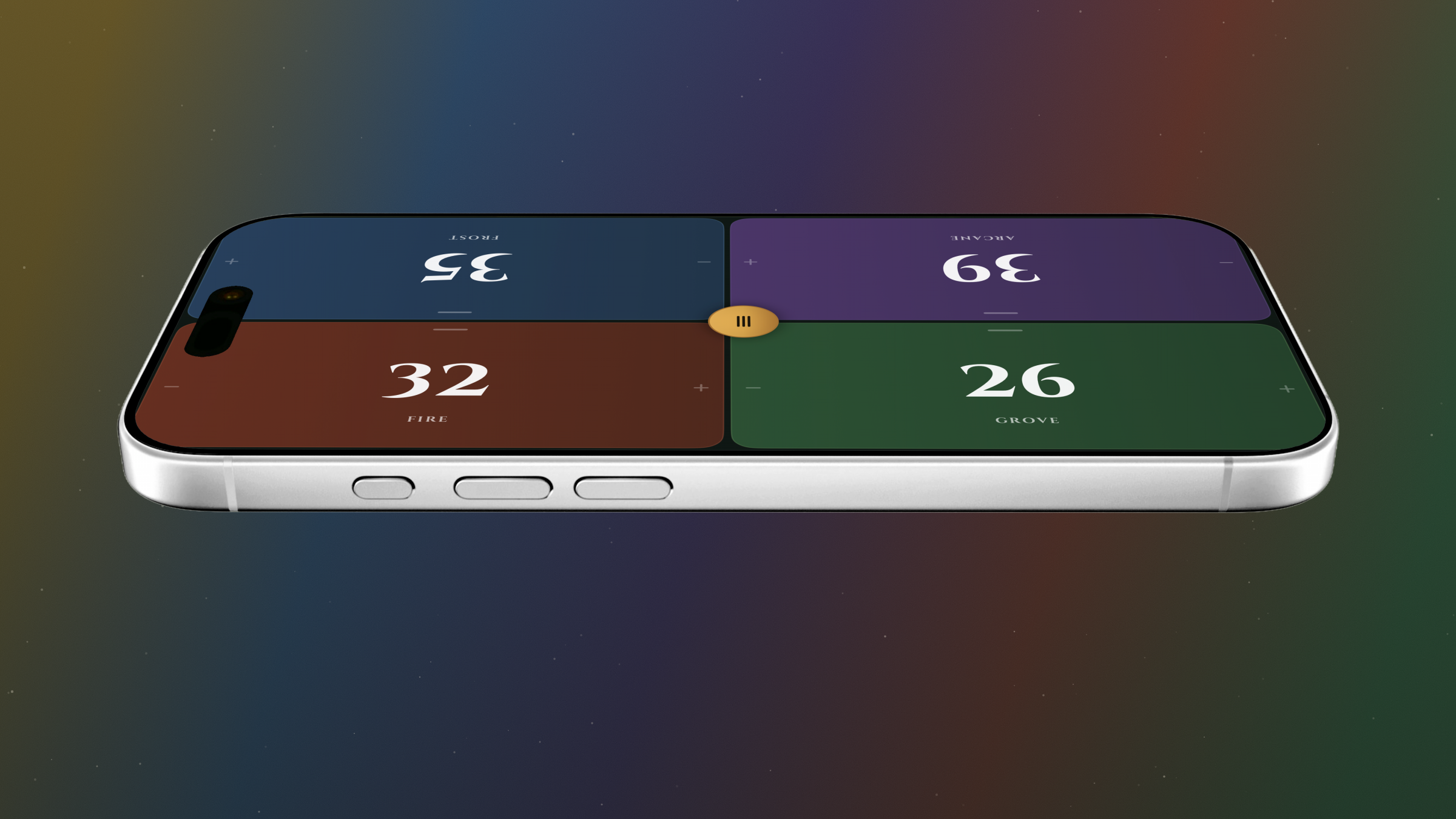
Life, counters and turns for 2 to 6 players on one phone in the middle of the table. In the iPhone app.
3 min read
 How-to
Scan cards into your Vault: instant scan vs standard scan
Scan a whole stack in one sitting. Pick a Binder, keep the Vault toggle on, and choose instant scan for speed or standard scan to set the details yourself.
4 min read