GuidesHow-to
Scan cards into your Vault: instant scan vs standard scan
Scan a whole stack in one sitting. Pick a Binder, keep the Vault toggle on, and choose instant scan for speed or standard scan to set the details yourself.
4 min read
Start with the stack in front of you
You opened a few packs. Or a friend handed you a box of cards they stopped playing. Now there's a stack next to you, and typing every name would take all night.
Point your camera at it instead.
The scanner uses the camera on your iPhone or iPad to read each card and add it where you choose. Your Vault is the part of your Library that keeps every card you own, and only you can see it. Your device reads the card itself. Photos of your cards aren't sent to us. Only the matched card is saved to your account.
Choose where your cards go
Before the first card, tell the scanner where the stack belongs.
Scan into a binder. Open the Scan into a binder menu and pick one of your Binders, or create a new one right there. A Binder is a list of cards, and it can mix cards you own with cards you want. Every card you scan goes into the Binder you picked.
Add to Vault. A toggle adds the same cards to your Vault too. It's on by default, so a new stack counts as cards you own. Turn it off when the cards shouldn't count as yours, like a list of cards you want. The toggle switches back on every time you open the scanner.
Two ways to scan
There are two scan modes for adding cards. One is built for speed, the other for control.
Instant scan is for getting through a stack. It finds the card, picks the printing for you, and moves on to the next card. The border turns green when a card is found, so you know it's safe to reach for the next one.
Standard scan is for the cards you want exactly right. After the scan, you choose the printing yourself. Then you set the condition, foil, price paid and quantity.
| Instant scan | Standard scan | |
|---|---|---|
| Printing | Picked for you | You choose it |
| After a card is found | The camera is ready for the next card | You set condition, foil, price paid and quantity |
| Best for | A big stack | Cards where the printing matters |
Which one to use
Instant scan works hard to get the printing right, but it isn't perfect. The same card can be printed in many sets, and some printings look almost alike. Each printing is its own card in your Vault, with its own price.
For most of a stack, that's fine. For the printings that matter to you, like a valuable card or a set you collect, give them a quick look after scanning. Or scan those with standard scan and choose the printing yourself.
Instant scan for the stack. Standard scan for the cards that matter.
Just looking? Use Lookup
Sometimes you only want to know what a card is. Lookup scans a card so you can look it up without adding it to a Binder or your Vault. It's handy for a friend's cards, or a card you're thinking about buying.
Scan a stack
- Open the scanner from Home.
- Use Scan into a binder to pick a Binder, or create a new one.
- Check the add to Vault toggle. Leave it on for cards you own.
- Pick instant scan or standard scan.
- Hold a card in front of the camera.
- With instant scan, wait for the green border, then move to the next card. With standard scan, choose the printing, then set condition, foil, price paid and quantity.
- Keep going until the stack is done.
When a card scans wrong
If the scanner picked the wrong printing, remove that copy and add the right printing from search. Open the card, pick the printing, then Your Copies, then Add. For the best results, scan in good light with the card on a plain white background.
Some cards won't scan at all. Cards in made-up languages, like Dwarven rune cards, may not be read. Cards with non-English text may not scan reliably either. Add those by search the same way.
Good to know
- Free holds up to 5,000 cards. Every copy counts, so 4 copies of one card use 4. If you try to add a card past 5,000, you'll see the Mythic upgrade screen. Mythic has no cap.
- Your Vault is private. Each Binder has its own visibility: Private, Friends, Traders or Public.
- Your cards are the same everywhere. Scanning is in the app on iPhone and iPad, and the cards you scan show up in your Vault and Binders on rhystictavern.com too.
- Card data and prices are free. Prices are estimates from Scryfall and update about once a day. They aren't store prices, so check a store before you buy or sell.
- Already have a list? Import it instead. The steps are in Import your card collection from a CSV or TXT file.
Scan your first stack
Open the scanner from Home, pick a Binder, and point your camera at a card.
Open the appWas this guide helpful?
Keep reading
More on How-to
- How-to
Play on Tavern with friends
One game on every phone. Each player plays from their own iPhone or iPad, and the board stays in sync for the whole table.
3 min read
 How-to
Run Table mode
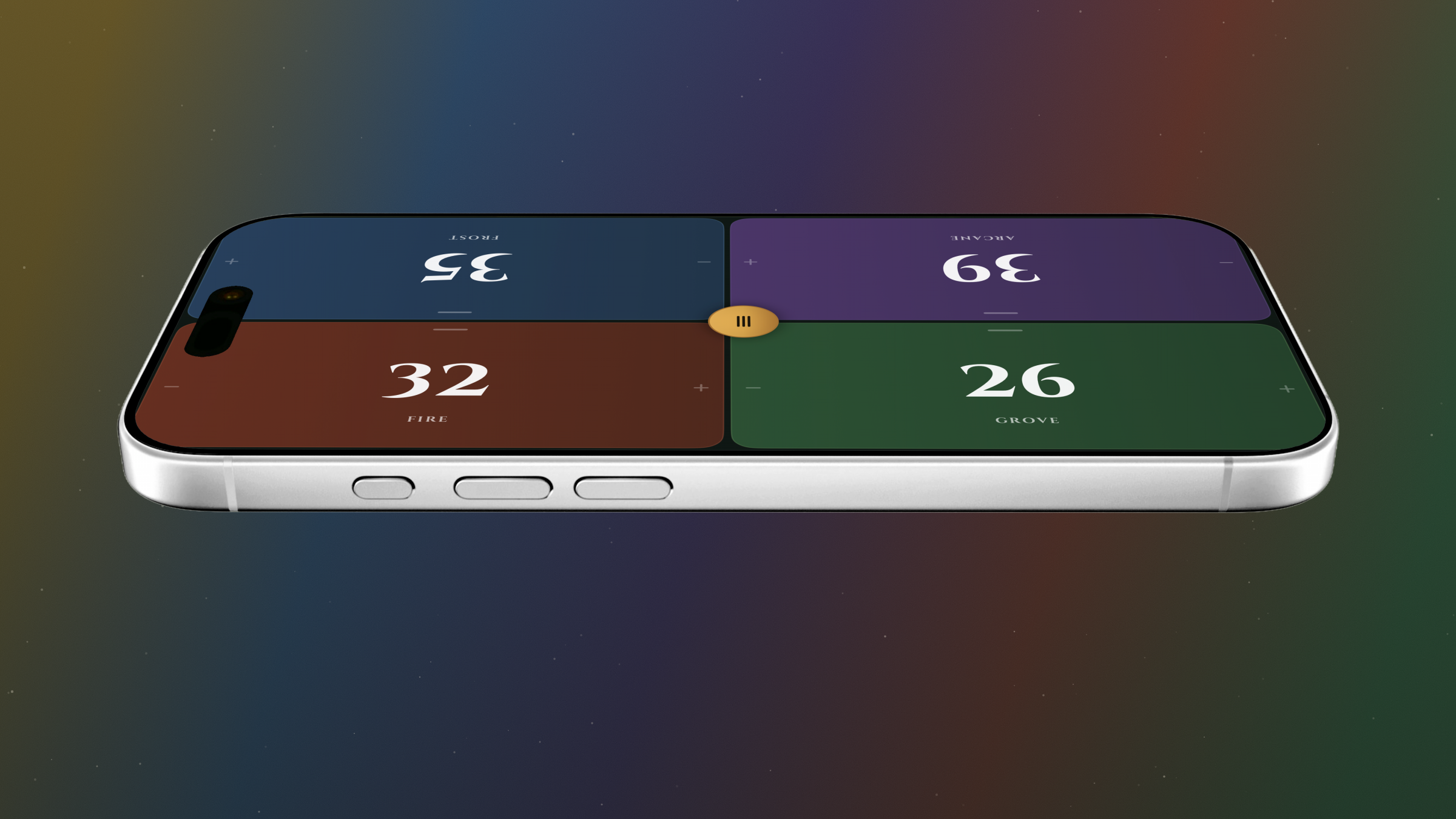
Life, counters and turns for 2 to 6 players on one phone in the middle of the table. In the iPhone app.
3 min read
 How-to
Import your card collection from a CSV or TXT file
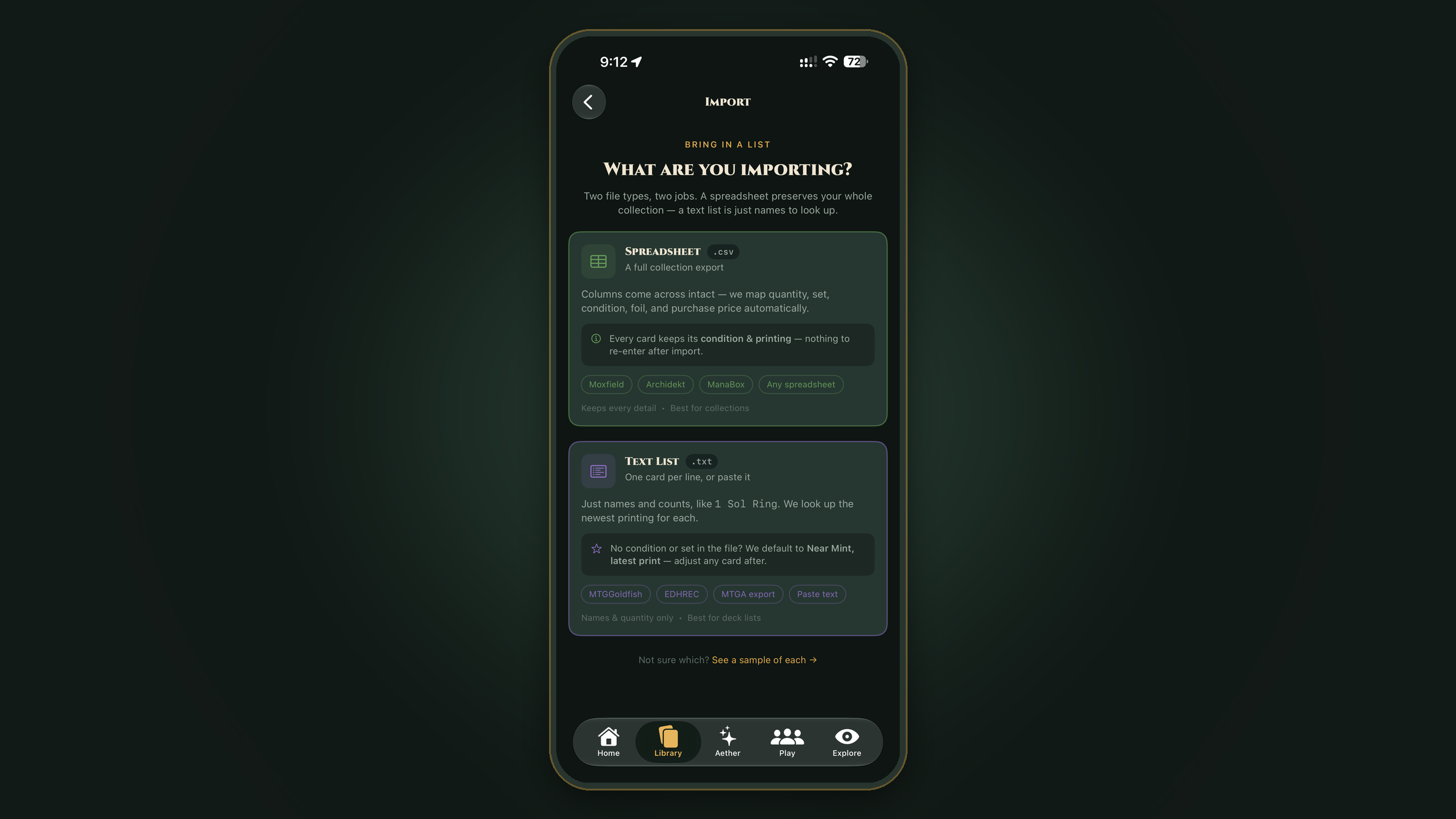
Your card collection is already written down somewhere. Bring it in without typing it all again, and check every match before anything is saved.
5 min read