GuidesHow-to
Run Table mode
Life, counters and turns for 2 to 6 players on one phone in the middle of the table. In the iPhone app.
3 min read
Who's keeping score
Everyone sits down, and somebody asks who's tracking life. Dice for one player, a notepad for another, a phone app only its owner can see. By turn six, nobody agrees on the totals.
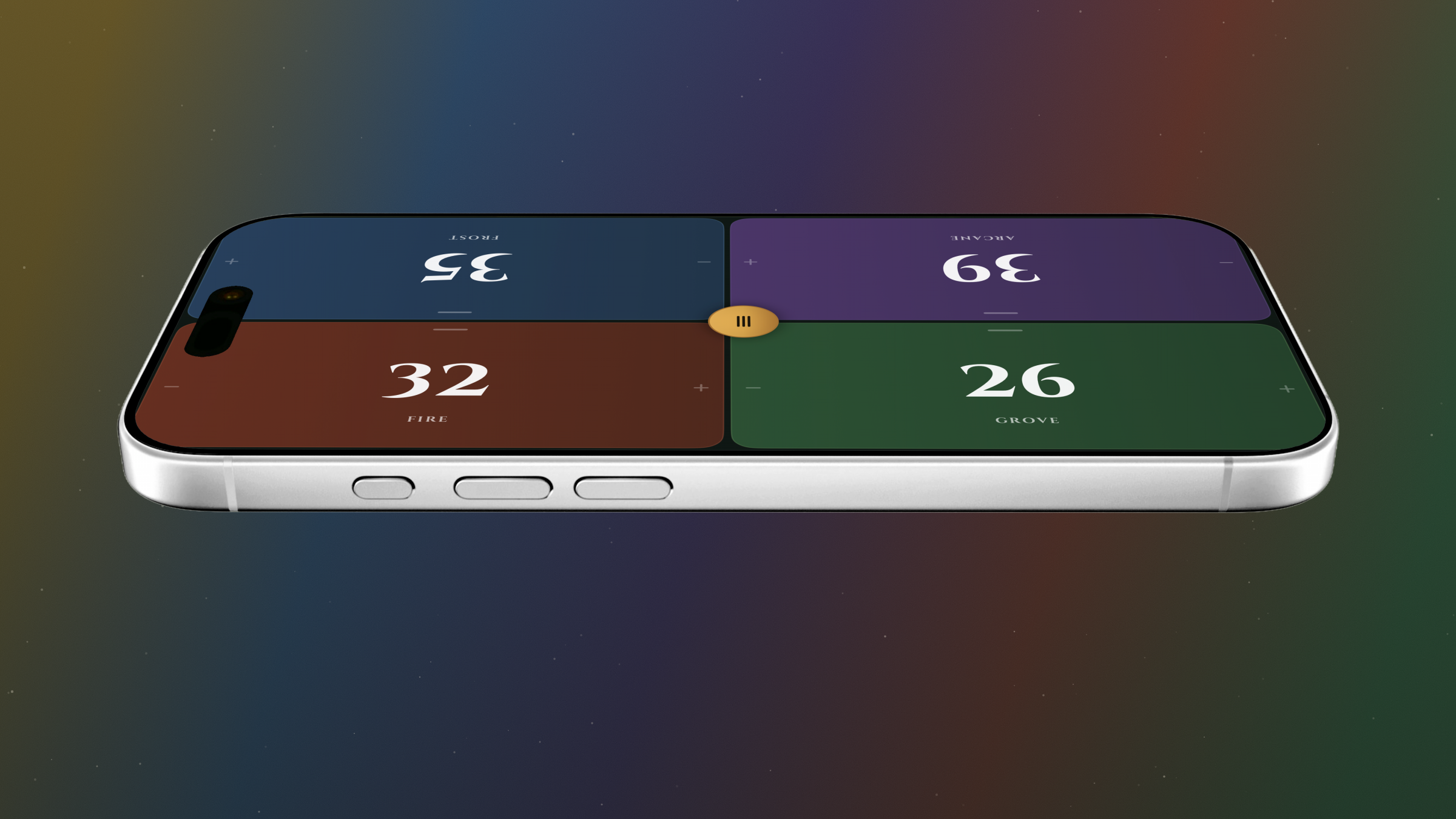
Table mode fixes that with one iPhone in the middle of the table. Everyone's life and counters are on the same screen, so the whole table sees the same numbers.
It's built for games played in person. If everyone would rather use their own phone, that's Tavern.
What it tracks
- Life, poison, commander damage up to 21, energy, experience and storm.
- Monarch and Initiative.
- Dice and a random player pick.
- Turns.
- Battle Mode for attacks.
Players are knocked out automatically at 0 life, 10 poison or 21 commander damage. You can also concede. Partner commanders count as one commander.
Run a game
- Open the Play tab and start a Table game.
- Put the phone in the middle, where every player can reach it.
- Track life and counters as you play.
- If someone taps the wrong total, open the Table Menu and tap Undo. Tap again to step back further.
- When the game ends, you get a game summary with a life chart, and a quick rematch if the table wants another.
No signal needed
Table works without internet. The game saves on your phone and uploads when it ends. So a dead spot in the back of the store doesn't cost you the game.
One phone, one set of numbers, and nobody arguing over the totals.
Move the game to another phone
Battery about to die? Move the game.
- Open the Table Menu and choose Transfer Game. It shows a 4-letter code and a QR code.
- On the other phone, go to Play, then Receive a Game, and enter the code.
- The code works once, for 10 minutes. The game moves to the new phone and leaves the old one.
Start from your playgroup
If your pod has a playgroup, start the game there. Open the playgroup, tap Start Game, choose Table, and pick who is playing.
Good to know
- iPhone app only. Play modes aren't on the website.
- Up to 6 players. Table works with anyone around the phone, account or not.
- Every game is kept. Your game history in the Play tab shows each game with the deck you played. Free accounts can view the past 6 months, and Mythic shows all of it.
- Read-only decks sit out. A deck that's read-only because it's over the free limit can't be picked for a game.
- Want every player on their own phone? That's Tavern. Each phone is one seat, and the board stays in sync.
Set up the table
Open the Play tab in the iPhone app and start a Table game.
Open the appWas this guide helpful?
Keep reading
More on How-to
- How-to
Play on Tavern with friends
One game on every phone. Each player plays from their own iPhone or iPad, and the board stays in sync for the whole table.
3 min read
 How-to
Scan cards into your Vault: instant scan vs standard scan
Scan a whole stack in one sitting. Pick a Binder, keep the Vault toggle on, and choose instant scan for speed or standard scan to set the details yourself.
4 min read
 How-to
Import your card collection from a CSV or TXT file
Your card collection is already written down somewhere. Bring it in without typing it all again, and check every match before anything is saved.
5 min read